


Search Google for “sweet shop in Jodhpur” or “tailor near me” and look at the top of the page. Before any website, you will usually see a small map and a short list of businesses, each with a star rating, opening hours and a phone number.
Many people never scroll past that list. They tap a name, tap “Call” or “Directions”, and they are on their way.
Each of those listings comes from a Google Business Profile. It is free. Most local businesses have one. But many are half-filled, out of date, or were made years ago by a relative and then forgotten.
This article explains, in plain words, how to set yours up properly, step by step.
What a Google Business Profile really is
Think of it as your shop’s board on Google. It shows on Google Search and on Google Maps. It holds your name, address, phone number, hours, photos, reviews and a short description.
When someone nearby searches for what you sell, Google looks at three simple things to decide which shops to show. Google itself names them:
- How well you match what they searched for (relevance).
- How near you are to them (distance).
- How well known and trusted you are (prominence) — this includes reviews and how much is said about you online.
You cannot move your shop closer to every customer. But you can make your profile match well, and you can earn trust. That is what the steps below do.
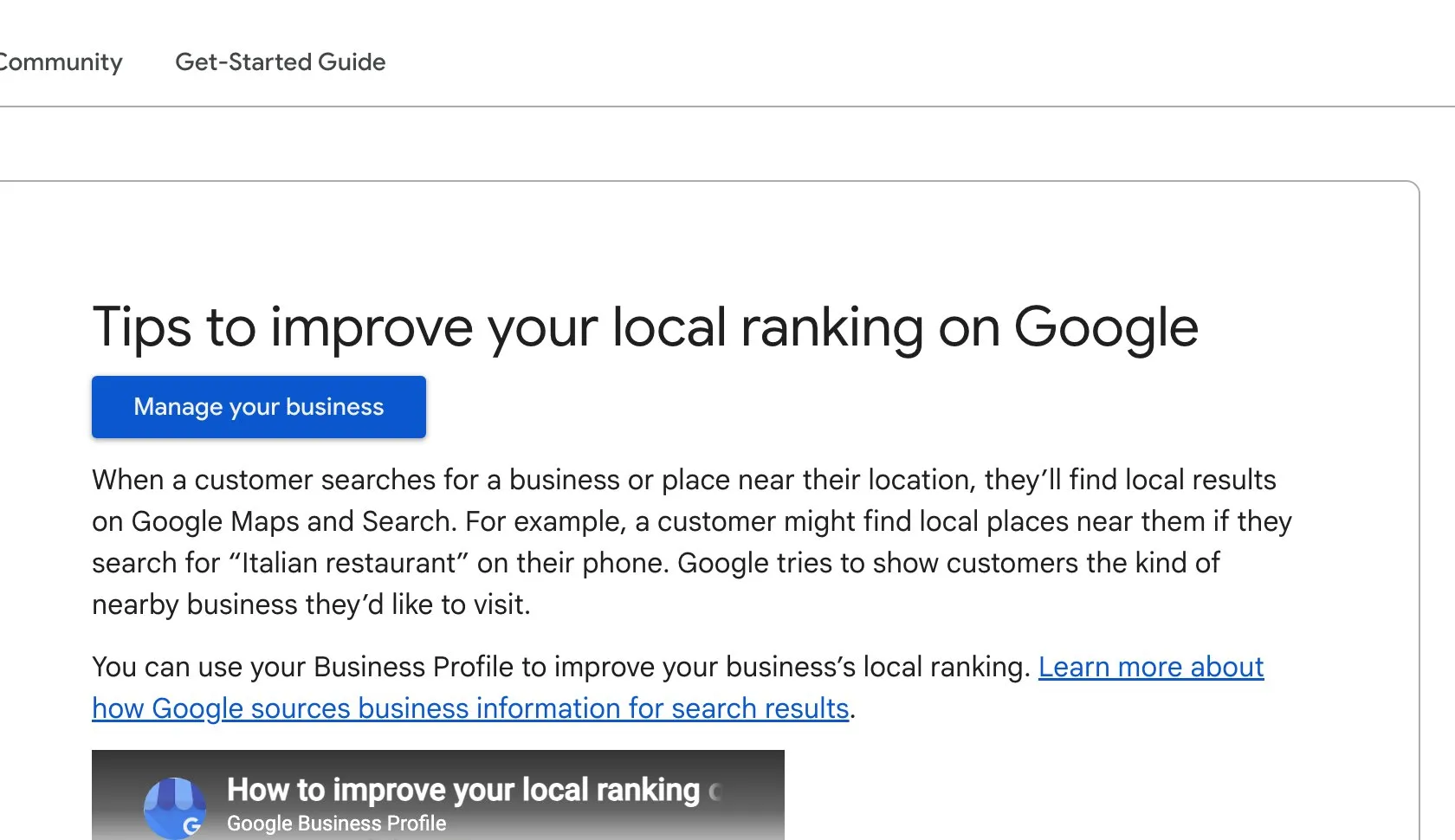
Google’s help page “Tips to improve your local ranking on Google”, where relevance, distance and prominence are explained. Screenshot taken 23 October 2026.
Step 1 · Claim your profile and get it verified
First, check if a profile for your business already exists. Search your shop’s name on Google Maps. If it is there, you will see an option to claim it. If it is not, you can create one at Google’s Business Profile page.
Google will then ask you to verify — to prove you really run this business. It may ask for a phone call, a text, an email or a short video of your shop. Follow what it asks. Until you are verified, many of your changes will not show.
Use an email account that belongs to the business and that you control. Do not let it sit only in the account of a staff member or an outside helper who may leave one day.
Step 2 · Get the basic facts exactly right
These look small, but they matter a lot:
- Name: use your real business name, exactly as it is on your board. Do not add extra words like “Best Sweets Cheap Jodhpur”. Google’s rules do not allow it, and it can get your profile suspended.
- Address: the same address as on your website, your bills and your other listings. Word for word.
- Phone number: one that someone actually answers during business hours.
- Hours: correct, including special hours for festivals and holidays. A customer who arrives at a closed shutter on Diwali will not trust you again easily.
- Website: link to your own website if you have one.
If you work at your customers’ homes and have no shop they can visit — a plumber or a home tutor, for example — you can hide your address and show a service area instead.
Step 3 · Choose the right category
Your main category tells Google what you are. It is one of the strongest signals you control.
Choose the most exact one that fits. “Sweet shop” is better than “Shop”. “Dental clinic” is better than “Doctor”. Then add a few extra categories only if they are truly true for you.
A good way to check: search for what you sell, look at the shops Google shows at the top, and see which categories they use.
Step 4 · Add real photos, and keep adding them
People want to see a place before they visit it. Add:
- the outside of your shop, so people can find the door;
- the inside, so they know what to expect;
- your products or your work;
- your team, if they are happy to be shown.
Use your own photos taken on a normal phone in good daylight. Do not use stock photos or pictures copied from the internet. Add a few new photos every month — fresh photos show that the business is active.
Step 5 · Write a clear description and list what you offer
The description is a short paragraph about your business. Write it like you would explain it to a new customer: what you do, who you help, which area you serve and what makes you different. Keep it honest and simple. Do not stuff it with the same words again and again.
Then fill in your products or services, with a line about each one. This helps Google match you when someone searches for something specific — “kaju katli” rather than just “sweets”.
Step 6 · Reply to reviews — all of them
Reviews are one of the first things people read. Reply to each one:
- For a good review, say thank you, by name if you can, and mention what they bought or enjoyed.
- For a bad review, stay calm. Say sorry for their experience, explain briefly if there was a reason, and invite them to call or message you so you can fix it.
Other customers read your replies too. A kind, honest reply to a complaint often builds more trust than ten five-star reviews.
Step 7 · Keep it alive
A profile is not a one-time job. Once a month, spend fifteen minutes:
- check your hours and phone number are still right;
- add a few new photos;
- share a short update or offer as a post;
- reply to any new reviews.
Also check from time to time that nobody has suggested a wrong change to your profile. Google lets the public suggest edits, and you should review them.
Your checklist for this week
- Search your business on Google Maps and claim or create your profile.
- Verify it using an email account the business owns.
- Check your name, address, phone and hours — make them exactly match your board and website.
- Choose the most exact main category you can.
- Add at least five real photos taken in daylight.
- Write a short, honest description and list your main products or services.
- Reply to every review you have not answered yet.
If you would like us to check your profile or set it up properly with you, message us on WhatsApp — we reply 24/7.
Sources
The official pages this guide is based on:


