


You open your own website on your phone. The screen stays white for a moment. Then the logo appears. Then the photos load slowly, one by one. Then the text jumps down just as you try to tap a button.
On your office Wi-Fi it seemed fine. On a phone, outside, it feels slow.
If it feels slow to you — and you already know your own site — it feels slower to a stranger who is not sure about you yet. Many of them simply go back and tap the next result.
This article shows you how to check your website’s speed for free, how to understand the results without technical knowledge, and what to ask your website person to fix.
What is really going on
A web page is not one thing. When someone opens it, their phone has to download many pieces: text, photos, fonts, small programs (called “scripts”) for things like chat buttons, sliders and tracking.
Each piece takes time, especially on a mobile connection. If there are too many pieces, or some are very large, the page feels slow.
Speed matters for two simple reasons:
- People are impatient on phones. If nothing useful appears quickly, they leave.
- Google pays attention to it. Google has said that page experience, which includes loading speed, is one of the things its systems consider. It is not the most important thing — helpful content matters more — but a slow page does not help.
Nothing here is a reason to panic. Most slow small business websites have one or two clear causes, and they can usually be fixed.
Google keeps a short list of questions for this on its own website. If you can answer “yes” to them, your pages are probably in good shape:
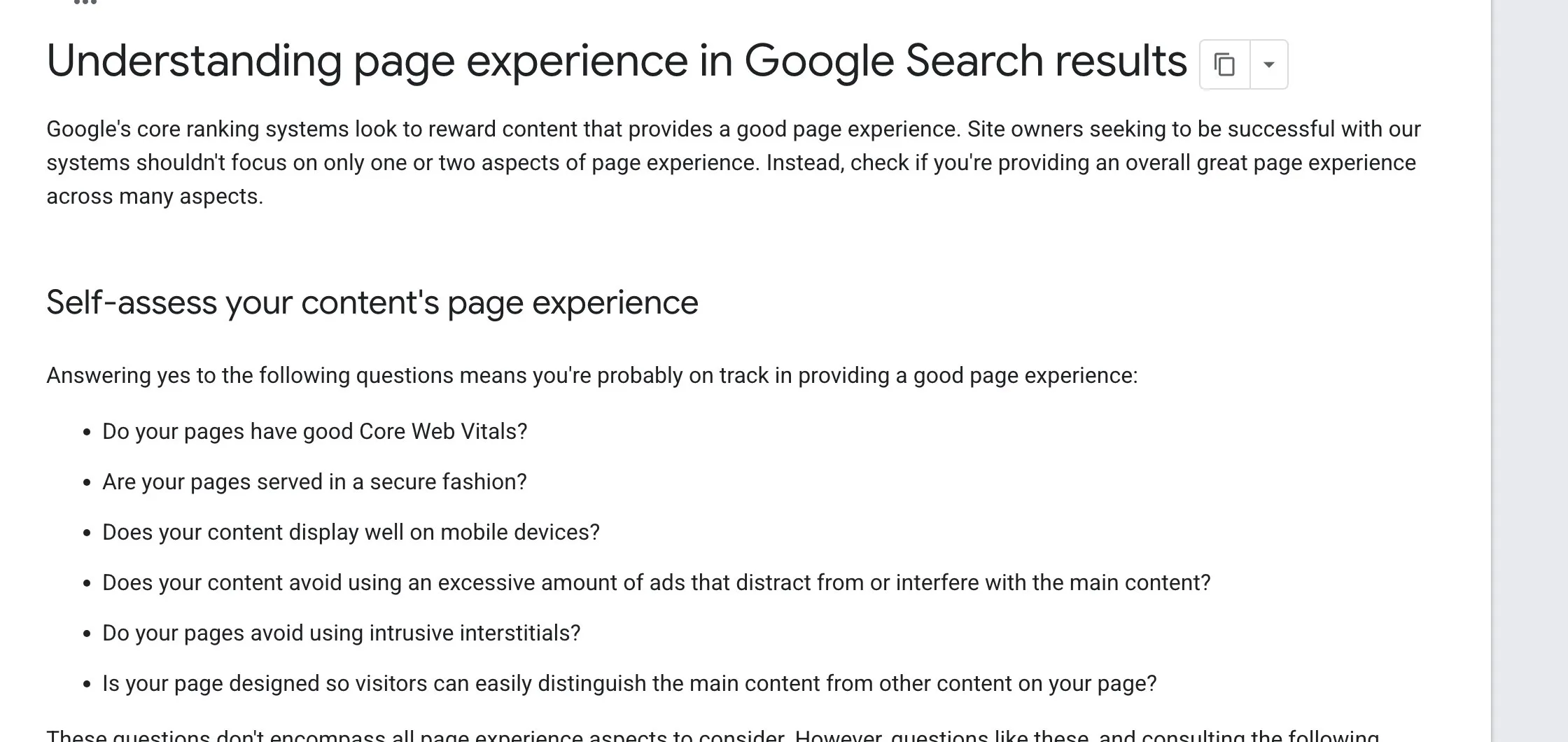
Google Search Central, “Understanding page experience in Google Search results”. Screenshot taken 23 October 2026.
Step 1 · Run the free test
Google offers a free tool called PageSpeed Insights.
- Open pagespeed.web.dev in any browser.
- Type your website address, for example
https://www.yourbusiness.in. - Press Analyze and wait about a minute.
You do not need to sign in or install anything. You can test any public website — including your competitors’, if you are curious.
Step 2 · Look at the “Mobile” result first
At the top of the results there are two tabs: Mobile and Desktop. Start with Mobile. Most of your visitors are probably on phones, and the mobile test is the stricter one — it pretends to be a mid-range phone on a slow mobile connection.
Step 3 · Understand the two parts of the report
The report has two sections.
“Discover what your real users are experiencing.” This uses real visits from Chrome users who agreed to share this kind of data. Many small websites see “No Data” here. That simply means not enough of these visits were recorded yet. It is normal and not a fault.
“Diagnose performance issues.” This is a test Google runs right now, on a pretend phone. This part works for every website. It shows four scores out of 100:
- Performance — how fast the page loads and becomes usable.
- Accessibility — how easy the page is for people with disabilities, for example people who use screen readers.
- Best Practices — general good habits, like using a secure connection.
- SEO — basic things that help search engines read the page.
The colours are simple: green is good (90–100), orange needs work (50–89), red is poor (0–49).
Step 4 · Read the timings in plain words
Under Performance you will see a few timings. You do not need to learn them all. Here are the two that matter most to a visitor:
- Largest Contentful Paint (LCP) — how long until the biggest thing on the first screen (usually the main photo or headline) appears. Google describes 2.5 seconds or less as good.
- Cumulative Layout Shift (CLS) — how much things jump around while loading. You know the feeling: you go to tap a button and the page moves. Lower is better; Google describes 0.1 or less as good.
The score changes a little each time you test. That is normal. Run it two or three times and look at the general picture, not one number.
Step 5 · Find the usual causes
Scroll down to the list of suggestions. They can look technical, but most small business sites have the same few problems:
- Photos that are far too large. A photo straight from a modern phone or camera can be several megabytes. On a website, the same photo can usually be made many times smaller with no visible difference. This is the most common cause, and the easiest to fix.
- Too many add-ons. Every extra slider, pop-up, chat widget, animation or plugin adds more to download. Ask: does each one actually help customers?
- Slow or overcrowded hosting. Very cheap hosting can put many websites on one small server. If even a simple page loads slowly, hosting may be part of the problem.
- Videos that start automatically at the top of the page.
- Many different fonts. Each font style is another file to download.
You do not have to fix these yourself. Take a screenshot of the report and share it with whoever looks after your website.
Step 6 · Fix the biggest thing first, then test again
Do not try to fix everything at once, and do not chase a perfect 100. A website that loads quickly, shows the important information early and does not jump around is doing its job — even if the score is in the 80s.
Fix one thing, wait a day, and test again. Keep a note of the date and score each time, so you can see if things are getting better.
A note for owners selling abroad
If your customers are in other countries, your website’s files may have to travel a long way. Ask your website person whether a content delivery network is set up. In plain words, that is a service that keeps copies of your site’s files in many places around the world, so they reach visitors faster.
Your checklist for this week
- Test your home page on pagespeed.web.dev and look at the Mobile result.
- Write down the Performance score and today’s date.
- Open your site on your own phone using mobile data, not Wi-Fi, and notice what feels slow.
- List every add-on on your site — sliders, pop-ups, chat tools — and remove the ones nobody uses.
- Ask your website person to resize large photos and check your hosting.
- Test again after each change, and test your two or three most important pages too.
A faster website is kinder to every visitor. If you would like us to run the test and explain what to fix first, message us on WhatsApp — we reply 24/7.
Sources
The official pages this guide is based on:


